YourFlix YourFlix Not Working? Complete Fix Guide for Streaming Problems
YourFlix not working on Smart TV, Fire Stick, Android, or mobile? Learn the most common causes and how to fix buffering, login issues, app errors, loading problems, and connection issues.
YourFlix Team
YourFlix Not Working? Complete Fix Guide for Streaming Problems
If YourFlix is not working, you are not alone. Many users sometimes face issues such as buffering, black screen, login problems, app crashes, playlist loading errors, or channels not opening. The good news is that most of these problems can be fixed quickly. In this complete guide, we explain the most common reasons why YourFlix may stop working and the exact steps you can follow to get your streaming back to normal.
Device Fixes
TV, mobile, box
Fast Checks
Quick solutions
Support Help
Know what to send
Step by Step
Easy troubleshooting
Quick Summary
If YourFlix is not working, the problem is usually caused by one of a few common reasons: weak internet, incorrect login details, expired subscription access, IPTV app cache problems, outdated device software, or a player app issue. In many cases, restarting the app, checking your connection, verifying your login details, and clearing cache can solve the issue quickly.
When users search for YourFlix not working, they are usually dealing with a frustrating moment. Maybe channels are not loading, the playlist stays blank, the app keeps freezing, or the stream buffers every few seconds. In some cases, the service may appear offline when the real issue is a simple connection problem on the device itself. This is why it is important to start with the right checks before changing settings or reinstalling apps.
Troubleshooting IPTV does not need to feel technical or confusing. Most streaming issues follow the same pattern. First, check the basics. Then test the app. After that, verify your subscription details and device status. By following a clear order, you can avoid wasting time and often solve the problem in just a few minutes.
This guide is designed for beginners and regular users who want a simple, practical answer. Whether YourFlix is not working on a Smart TV, Fire Stick, Android box, tablet, or phone, the same troubleshooting logic can help. We will walk through the most common causes, explain how to fix them, and show when it is time to contact support.
Why Is YourFlix Not Working?
There is no single reason why YourFlix may stop working. IPTV services depend on several parts working correctly at the same time: a stable internet connection, a compatible device, an IPTV player app, correct account details, and active subscription access. If one part fails, the whole streaming experience can stop working or feel unstable.
In most cases, the issue is not permanent. That is important to remember. A loading problem does not always mean the service is down. Sometimes the problem is as simple as weak Wi-Fi, app memory overload, old cache files, or incorrect portal information typed inside the player. Starting with calm, simple checks is the best way to fix YourFlix quickly.
Quick Checks Before You Change Anything
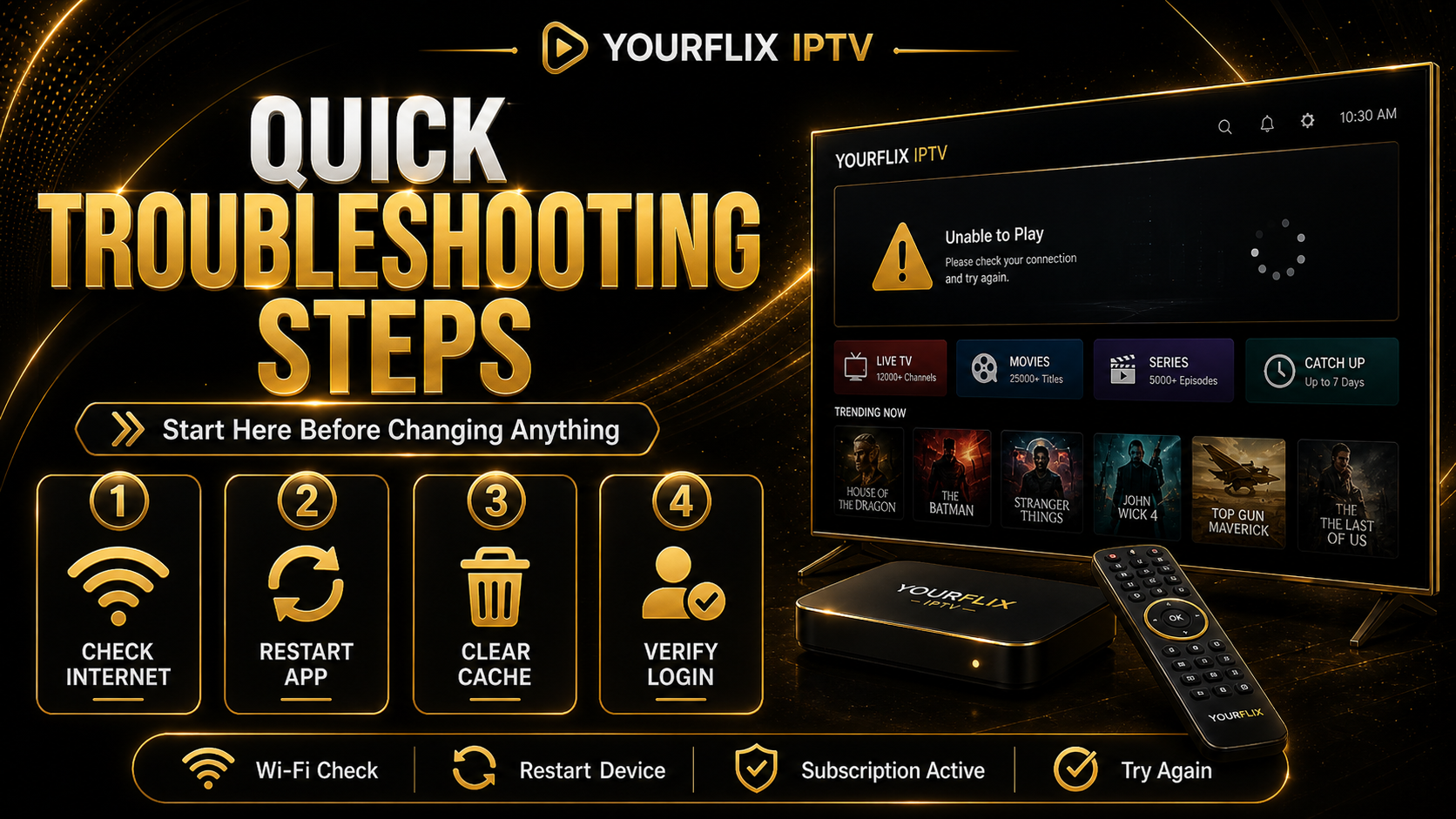
Before you reinstall the app or assume there is a major problem, begin with a few fast checks. These simple checks solve a large number of IPTV issues and help you understand whether the problem is from your internet, device, app, or account.
Start with these basic checks
- Confirm that your internet connection is working on the device.
- Close the IPTV app completely and reopen it.
- Restart the device you are using.
- Check that your login details or playlist link are correct.
- Make sure your subscription period is still active.
- Try another channel or category to see whether the issue affects everything.
- Check if another app on the same device is also having connection issues.
Why these checks matter
These checks help you identify where the real problem starts. If the internet is down, there is no reason to change app settings first. If the app opens but nothing loads, the issue may be with the player cache or login details. If only one device has the problem, the issue is likely local to that device, not your full subscription. This step-by-step method saves time and reduces stress.
Check Your Internet Connection First
The most common reason YourFlix stops working is a weak or unstable internet connection. IPTV streaming depends on steady bandwidth. If your Wi-Fi signal is poor, overloaded, or unstable, you may see buffering, freezing, loading circles, or a black screen. Even if the app opens correctly, the stream may not start if the connection quality is bad.
How to test your connection
Open another app or website on the same device and check if it loads properly. If everything feels slow, your internet is the first thing to fix. Restart your router, reconnect your device to Wi-Fi, or test the service using a wired Ethernet connection if possible. A wired connection is often more stable than Wi-Fi for IPTV streaming.
Connection tips for better streaming
If YourFlix works better after restarting your router or reducing network traffic, then the main issue was probably your local connection. Stable internet is one of the biggest factors behind a good IPTV experience.
Restart the App and Clear Cache
Another very common cause of streaming problems is the IPTV app itself. Apps collect temporary files and memory data while running. Over time, that stored data can create loading errors, freezing, playlist problems, or slow navigation. If YourFlix is not working, restarting the app completely is a good next step.
How to restart the app properly
Do not just go back to the home screen. Force close the app fully from the device settings or recent apps screen, then open it again. If the issue continues, go into the app settings and clear the cache. This removes temporary files without usually deleting your full device setup.
When to clear app data
If clearing cache is not enough, some users may need to clear full app data or reinstall the player. Keep in mind that clearing full data may remove login details or account information from the app, so be sure you have your correct access details before doing that. This step is useful when the app keeps crashing, refusing to load categories, or staying stuck on a loading screen.
Check Your Login Details and Subscription Status
If YourFlix opens but no channels or categories appear, the issue may be related to your login details. A small typing mistake in the username, password, portal URL, Xtream Codes fields, or M3U link can stop the service from loading correctly. It is always worth double-checking your details carefully.
In addition, if your subscription has expired, access may stop or parts of the service may not load correctly. Users sometimes think the player is broken when the real issue is simply that the subscription ended. Before making bigger changes, check whether your plan is still active and whether your details match what was provided to you.
Common things to verify
- Correct username and password
- Correct server or portal URL
- Correct M3U or Xtream login method
- No extra spaces copied by mistake
- Subscription still active
- Correct device/account used for the login
YourFlix Buffering or Freezing
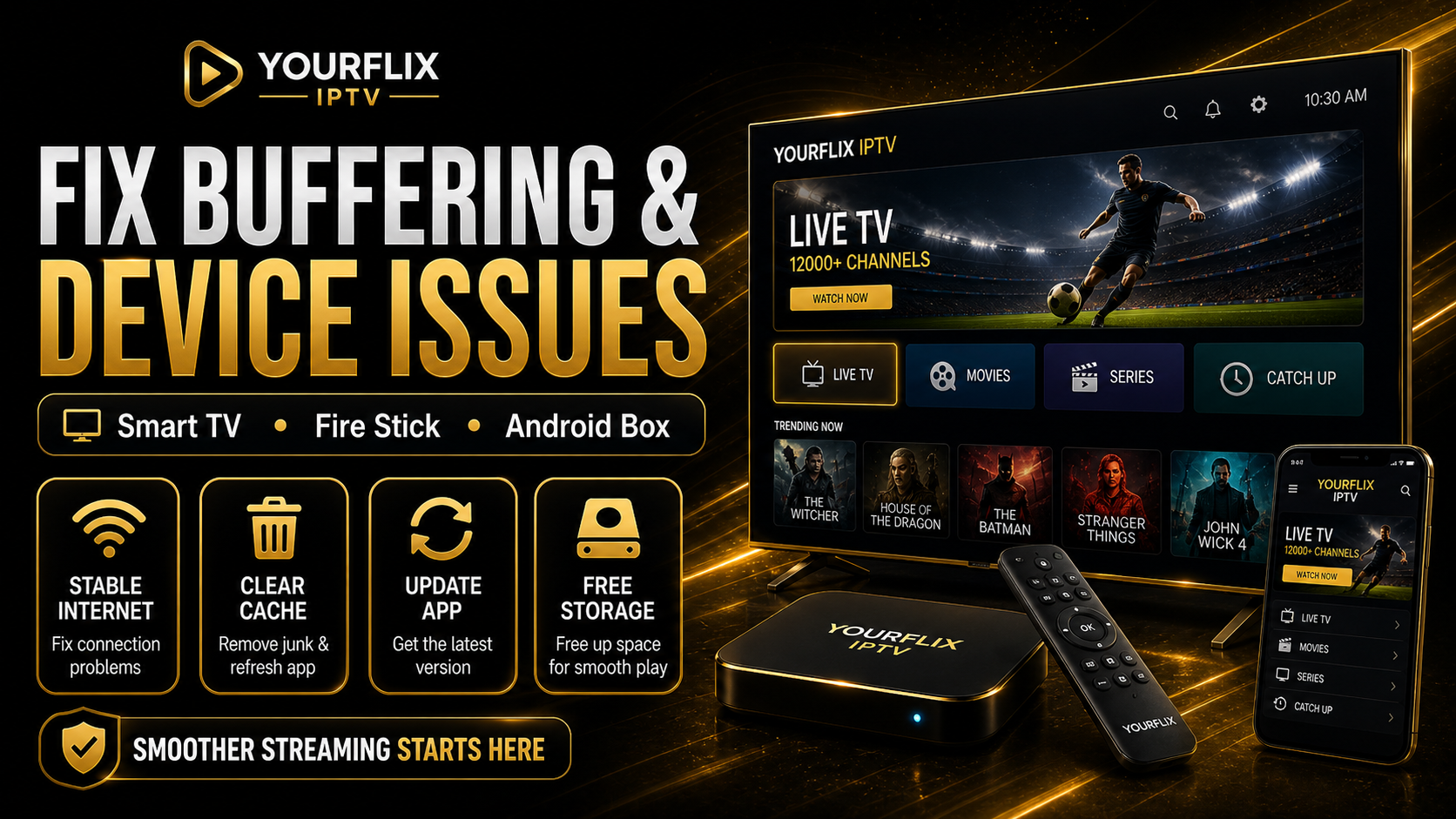
Buffering is one of the most searched IPTV problems because it interrupts the entire viewing experience. If YourFlix is buffering or freezing, the issue is usually related to internet quality, device performance, or too much local network traffic. In some cases, an old app version or poor Wi-Fi signal can also make the stream unstable.
How to reduce buffering
Start by checking your connection quality. Then close background apps and reduce the number of other devices using the same internet connection. If your device allows it, use a lower stream quality temporarily to test stability. You can also restart the player and device to clear memory pressure. These simple actions often improve performance quickly.
Best practices for smoother playback
- Use a strong and stable internet connection.
- Choose Ethernet over Wi-Fi whenever possible.
- Restart your device regularly.
- Keep the IPTV app updated.
- Close other apps running in the background.
- Avoid downloading large files while streaming.
YourFlix Not Working on Smart TV, Fire Stick, or Android Box
Device-specific issues are also common. A service may work well on one screen but fail on another. That does not always mean the subscription is the problem. It can be caused by device storage limits, outdated software, app compatibility, or local network settings on that specific device.
1. Smart TV Problems
If YourFlix is not working on a Smart TV, restart the television fully, update the IPTV player app, and check your internet connection on the TV itself. Some Smart TVs also perform better after you clear the app cache or power off the TV for a full minute before turning it back on.
Smart TV quick tips
- Restart the TV completely
- Update the app and TV software
- Reconnect to Wi-Fi
- Try another compatible IPTV player if needed
2. Fire Stick Problems
Fire Stick devices can slow down when storage becomes full or when too many background apps are active. If YourFlix is not working on Fire Stick, restart the device, clear the IPTV app cache, remove unused apps, and make sure the device still has free space.
Fire Stick quick tips
- Restart the Fire Stick
- Clear app cache
- Free up storage space
- Check HDMI and power stability
3. Android Box Problems
Android boxes are flexible, but they can also collect too much cached data over time. Restarting the box, clearing app cache, updating the firmware, and checking network settings are all useful steps. If the box feels slow in general, the problem may be system performance rather than YourFlix itself.
Android box quick tips
- Reboot the box fully
- Update firmware if available
- Clear IPTV app cache
- Check Ethernet or Wi-Fi strength
What If YourFlix Is Not Working on Mobile or Tablet?
Mobile devices and tablets often have fewer problems than TVs, but they are not immune. If YourFlix is not working on Android, iPhone, or iPad, start by switching between Wi-Fi and mobile data to compare connection behavior. Then restart the app, clear cache if possible, and make sure your device software is updated.
Mobile troubleshooting checklist
Check these points on mobile devices
App version
Install the latest version of the IPTV player app.
Internet source
Test both Wi-Fi and mobile data when possible.
Device updates
Old software can affect app compatibility and performance.
Login details
Re-enter details carefully if the playlist does not load.
If the service works on mobile but not on your TV device, that is a useful sign. It usually means the account itself is fine and the problem is specific to the television app, device software, or connection setup.
Try Another IPTV Player App
Sometimes the issue is not from YourFlix at all. It may come from the IPTV player app you are using. Different apps handle login methods, buffering control, memory usage, and stream playback differently. If one player app keeps failing, testing another compatible player can help you identify whether the problem is app-related.
This is especially helpful if your current app crashes often, loads categories very slowly, or shows strange errors while other apps on the device work normally. A better player app can improve navigation, reduce playback issues, and offer a smoother overall experience.
When Should You Contact YourFlix Support?
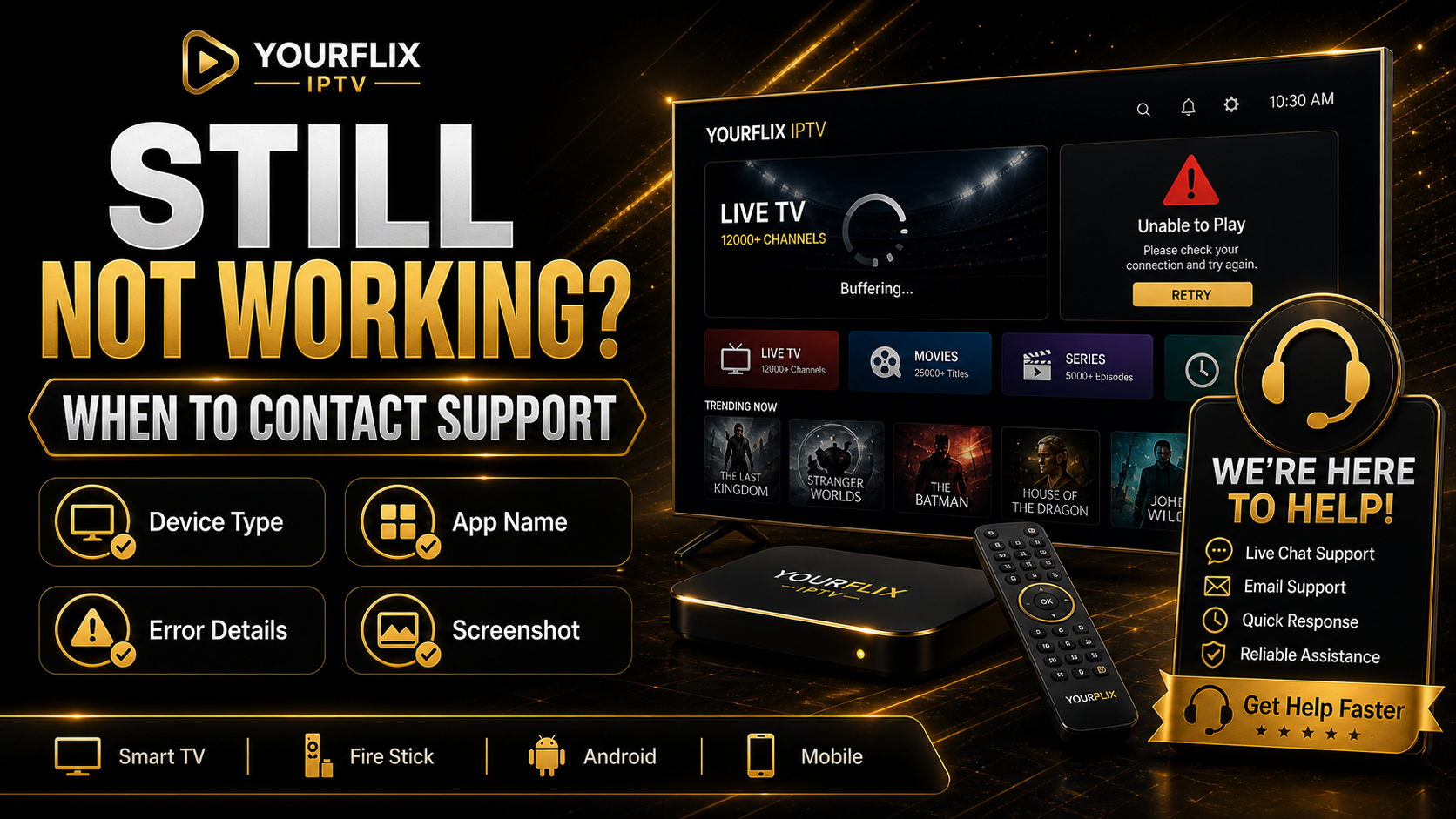
If you already checked your internet, restarted the device, cleared app cache, verified your login details, and tested another player, then it may be time to contact support. Support can usually help faster when you provide clear information instead of only saying that the service does not work.
What to send to support
- Your device type, such as Smart TV, Fire Stick, Android box, phone, or tablet
- The name of the IPTV app you are using
- A short description of the problem
- Whether the issue affects all channels or only some channels
- Whether you already restarted the app and device
- If possible, a screenshot of the error message
Clear information helps support understand the problem faster. This can save time and reduce back-and-forth messages. The more accurately you describe the issue, the easier it becomes to solve it.
Frequently Asked Questions
Why is YourFlix not loading?
YourFlix may not load because of weak internet, incorrect login details, app cache problems, outdated software, or an inactive subscription.
Why is YourFlix buffering so much?
Buffering is usually caused by unstable internet, weak Wi-Fi, heavy network traffic, or device performance issues.
Does restarting the app really help?
Yes. Restarting the app and clearing its cache can solve many temporary loading and playback problems.
What if YourFlix works on one device but not another?
That usually means the subscription itself is fine and the problem is specific to the device, player app, or local network on that screen.
Can a different IPTV app fix the problem?
Sometimes, yes. If your current player app is unstable or outdated, another compatible IPTV app may work better.
Final Thoughts
If YourFlix is not working, the best approach is to troubleshoot in the right order. Start with the internet connection, then restart the app and device, check your login details, confirm your subscription access, and test whether the problem is linked to one specific device. In many cases, the solution is much simpler than it first appears.
A good troubleshooting process gives you confidence and saves time. Instead of guessing, you follow clear steps and identify the real cause. This makes it easier to enjoy a smoother streaming experience and avoid the same problem in the future.
Need More Help With YourFlix?
Explore YourFlix setup help, troubleshooting guides, and premium subscription information to enjoy a smoother streaming experience across your devices.
Visit Setup GuideTags
Start Your 4K Journey
20,000+ channels, 60,000+ VODs. YourFlix IPTV instant activation.
View YourFlix PlansBest IPTV Service • 4K IPTV Encoder
Written by
YourFlix Team
YourFlix IPTV expert brings you the latest insights on IPTV service, 4K IPTV encoder technology, and setup guides.